Importing a MySQL DB into WAMP

If you are like me and other Windows users, you most likely use WAMP or XAMPP as a PHP localhost environment stack. And in most cases, you use the MySQL service along with phpMyAdmin. For the most part phpMyAdmin handles all the database management tasks you need as well as a pretty great import and export feature. However, there are times when your DB dump is far too large for phpMyAdmin to handle, and twiddling with php.ini settings doesn't help fix it -- but there is a solution!

The MySQL services comes installed with a MySQL console which you can use to import the SQL file. After you turn WAMP on, click on the system tray icon, navigate to the MySQL folder and open the MySQL console. This should open a command prompt that asks for your password (usually empty if you use the default install settings). To import simply run the following commands (you can type \h to view more all the commands).

use databaseName;
\. C:\path\to\sql\dump.sql

And that's it! Be sure to have a raw SQL dump as the import won't work on gzipped files.

Installing GitExtensions for Windows

I have been trying to get into Git for a while now, but with its lack (or terrible) support on Windows, I ignored it. I tried doing the stand alone CLI, but I don't like CLI, so I abandoned it. I tried using TortoiseGit, but wasn't too fond of still trying to get SHH or Putty integrated nicely. I want something that does it all for me, without me having to configure or do anything (or maybe I just completely did it wrong, or was using an old build). Along came GitExtensions in all its glory. It came packaged with everything I needed: Putty/SSH integration, repository management, GitHub support (remote features), and all the other awesome minor features. I mean it even has a CLI, if I ever wanted to use it.

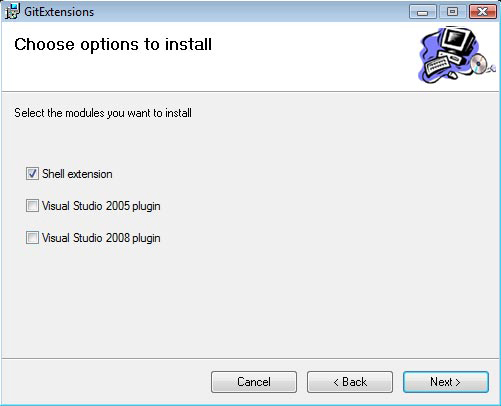
The installation process was straight forward and painless. I will run you through the installation process and how to get GitExtensions working on Windows. Once done, you should be ready to dive into Git head on. I took the time to add screenshots of the installation process to aide you on.

Downloading

Well the first step of course is downloading the program. You can download it from the projects page. Personally I would go with the full installer (MSysGit, KDiff3 and PuTTy built in), so that you do not have to do all those separately yourself. Once downloaded, just execute the file and follow the steps.

Installation

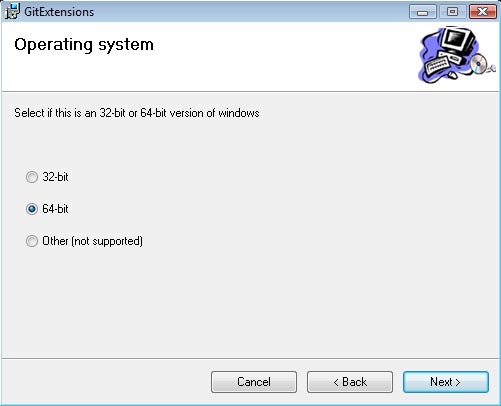
Its important that you go through the installer slowly, and select your proper configuration. For example, I am on a 64-bit computer, so I will be choosing the 64-bit option.

You should next be asked where to store the files, I kept them in its default location within the "Program Files". On the next screen it gives you a list of checkboxes for "Shell Extension" and "Visual Studio". If you are not going to be using the Visual Studio integration, do not check these boxes, however Shell Extension should be checked.

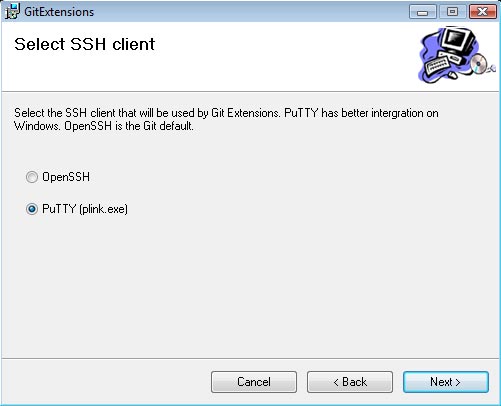
The next setting should be for your SSH support. Personally I have always used PuTTy, so I went with PuTTy (and the integration works perfect so far). If you are a fan of OpenSSH, then by all means go with what your comfortable and use to.

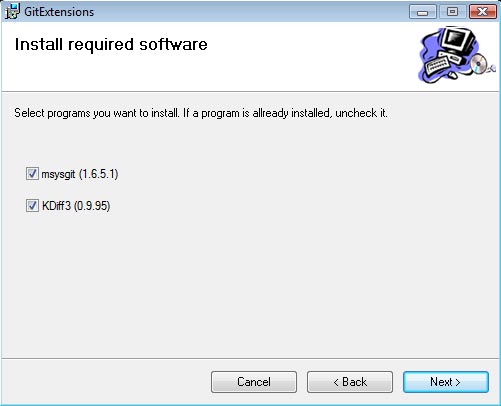
The final screen should be a list of required components to install. MSysGit is the base of Git, so make sure that it is checked off (if you already have it installed, you do not need to check it). KDiff3 is used for revision history allowing you to see changes, merges, etc between 2 file states. I have yet to use this feature, but its nice to have if you are working on a repository with multiple users. It also doesn't hurt to install it anyways. Once you are finished, click next to start the installation process.

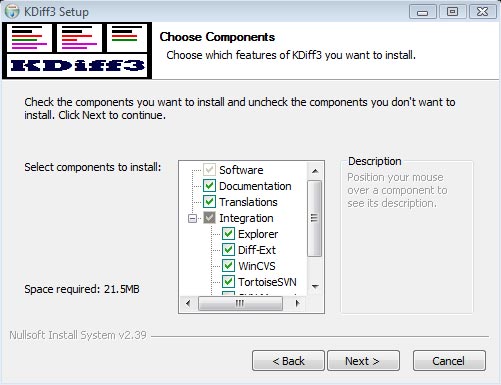
During the installation process, it will prompt you to select your language, and will install the selected components. I kept all the default settings and locations for the KDiff installation, but you are welcome to change them.

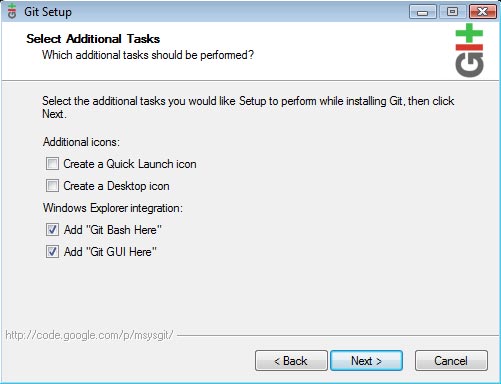
And finally, we get to install Git itself. You can just keep clicking "Next" to continue with the default installation. You will get to a screen with the options for "Add Git Bash Here" and "Add Git GUI Here". These settings add menus to your Windows Explorer right click menu, and will open up the CLI/GUI on the selected folder. They are not really mandatory, but its safe to keep them. The "Quick Launch" and "Desktop icon" checkboxes are not required, seeing as how we will never use Git stand-alone, but through GitExtensions, so you may uncheck them.

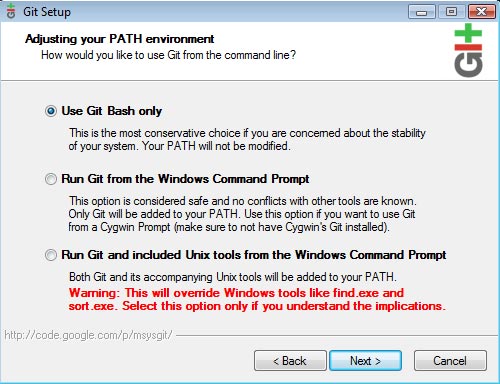
The next screen is important. You should keep "Use Git bash only" checked and not use the other options (unless you are familiar with these settings).

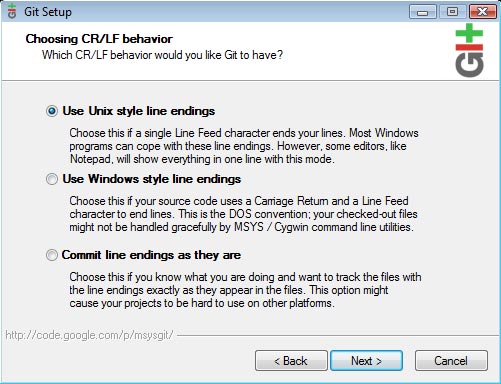
Git allows you to parse the correct line endings during each push. Personally I go with the "Unix style" line endings because my online servers are Linux boxes. These settings are entirely up to your environment, so choose which works best.

Completion

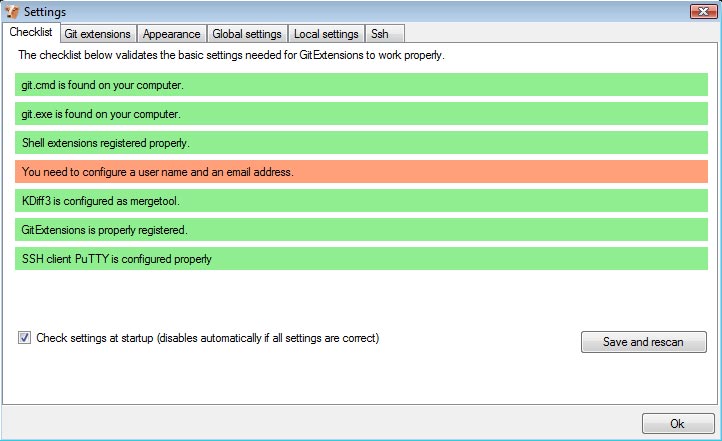
GitExtensions, alongside with MSysGit, KDiff and PuTTy should all be installed now. The next step is to launch GitExtensions and configure it to your needs. You should receive the following prompt.

All of the bars should be green if everything installed correctly, excluding the username/email bar. You will need to update the global settings with that information. You can do so by clicking on the orange bar, filling out the input fields and hitting OK. Once you have hit OK, you are finished, and a prompt will open up with buttons for "Open Repository", "Clone Repostory" and "Create Repository".

I hope this helped in your endeavor to use Git on Windows! I will discuss those 3 buttons in more detail within my next post. For the time being, everything should be installed correctly and you can begin messing around with GitExtensions. Enjoy!
XAMPP in Windows: Setting up vHosts

If you have ever used a local server, you would immediately realize that you can only develop one site at a time using the given root. You could however setup multiple folders for different websites within your local servers root, but the problem with that is they would all share the same root, big problem! To fix this you would have to set up virtual hosts, or vhosts for short. A vhost is a small server side trick (using Apache) that allows for multiple domains (websites) under the same root or IP address.

To get this working in XAMPP, we will need to edit our hosts file and the httpd-vhosts.conf file within your XAMPP setup. But before we begin, lets set up a quick example of what we will be trying to achieve. We will want to setup two websites within the htdocs folder, we will create 2 folders with the first one "site1" and the second "site2" (you can name these whatever you wish).

The first thing we need to do is open the Windows hosts with Notepad, which can be located at C:/WINDOWS/system32/drivers/etc. If you are using Windows Vista, you will need to right click on Notepad and click "Run as Administrator" to be able to open the hosts file. Once you have opened the hosts file, add the following 2 lines to the file and save it.

127.0.0.1		site1
127.0.0.1		site2

Secondly we will need to open the vhosts file located at C:/xampp/apache/conf/extra/httpd-vhosts.conf and add the following code. Copy and paste this code for each additional vhost you wish to setup.

# Uncomment the following
NameVirtualHost *:80 
<VirtualHost *:80>
	ServerAdmin webmaster@localhost
	DocumentRoot C:/xampp/htdocs/site1
	ServerName site1
	<Directory "C:/xampp/htdocs/site1">
		Options Indexes FollowSymLinks Includes ExecCGI
		AllowOverride All
		Order allow,deny
		Allow from all
	</Directory>
</VirtualHost>
<VirtualHost *:80>
	ServerAdmin webmaster@localhost
	DocumentRoot C:/xampp/htdocs/site2
	ServerName site2
	<Directory "C:/xampp/htdocs/site2">
		Options Indexes FollowSymLinks Includes ExecCGI
		AllowOverride All
		Order allow,deny
		Allow from all
	</Directory>
</VirtualHost>

Once you have completed both these tasks you must restart Apache. Once restarted, you can go to http://site1/ and all files and folders within "site1" should be displayed. You may do this for as many websites as you wish, just make sure to complete both tasks!

XAMPP in Windows: Enabling InnoDB

I recently convinced my friend to start learning CakePHP and to install XAMPP for windows. Everything was going smoothly up until he needed to have the database engine InnoDB enabled. Here's a very quick tutorial on how to enable InnoDB on Windows XAMPP (might also work with other local servers).

I'm assuming you have installed the XAMPP directory into the root or C:/ drive. The first thing to do is to open the my.cnf located at C:/xampp/mysql/bin/my.cnf (Notice Your my.cnf file may have an icon that looks like a computer/phone and has a type called SpeedDial. Do not worry, this is the correct file. To open the file, first start Notepad and then locate the my.cnf file and open it). Locate the text below and add # to the beginning of it (# acts as a comment and disables the command).

#skip-innodb

The next and final step is to remove # from any line the begins with innodb_. Your file should now look something like the following. Once you have done this, save the file and InnoDB should be useable in your local server.

#skip-innodb
innodb_data_home_dir = "C:/xampp/mysql/"
innodb_data_file_path = ibdata1:10M:autoextend
innodb_log_group_home_dir = "C:/xampp/mysql/"
innodb_log_arch_dir = "C:/xampp/mysql/"
innodb_buffer_pool_size = 16M
innodb_additional_mem_pool_size = 2M
innodb_log_file_size = 5M
innodb_log_buffer_size = 8M
innodb_flush_log_at_trx_commit = 1
innodb_lock_wait_timeout = 50